Video Strategy
Accessible business video
Plan captions, visual descriptions, transcripts, readable graphics and player checks for a business video people can use in different ways.
Plan a business video so viewers can get its essential message through audio, text and usable visuals. For a pre-recorded video, check what the soundtrack leaves out, caption meaningful audio, provide a descriptive transcript and review the finished player as well as the export. The exact alternatives needed depend on the video’s content.
Decide what the video communicates
Before production, write down the question the video answers and the information a viewer must receive. In a service explainer, that may be the steps, their order and any condition that changes the next action. In a demonstration, it may include a control label, an on-screen result or a warning visible only in a graphic.
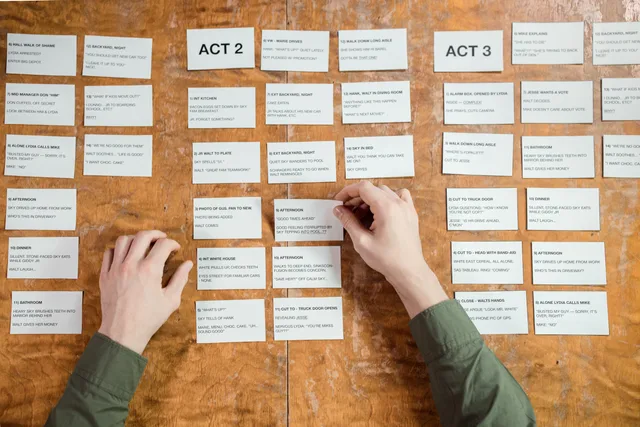
Review the script and storyboard in two ways. Listen to the planned audio without the images: what essential visual facts are missing? Then consider the images without sound: what speech or sound would a viewer need in text? Use the gaps to plan the alternatives.
Use clear language in the script: avoid jargon, acronyms and idioms, or explain them when necessary. Pauses between topics give viewers time to process the information and can make the sequence easier to follow.
Set the review criteria early
Accessibility decisions are influenced by audience needs, business benefits, government regulations and other policy requirements, as well as budget and time constraints. Identify these constraints before production so the team can plan the required alternatives and review time.
WCAG checklists distinguish criteria at Levels A, AA and AAA from additional measures that support user needs.
Put essential visuals into the spoken explanation
For a new video, the presenter can often describe visual details naturally. “Select Save draft; the status changes to Pending review” is clearer than “Click here and you’ll see this”. State a chart’s conclusion rather than relying on viewers to infer it from a moving line. Say a speaker’s name or other on-screen text when it is needed to understand the message.
If essential visuals cannot fit naturally into the main speech, plan a separate audio description or a described version. The method depends on the material, available pauses and player support. A descriptive transcript also conveys visual information for reading.
Make instructions work for people who cannot rely on colour or another sensory detail alone. For example, identify an object by its size or shape as well as its colour, rather than telling viewers only to select “the green one”.
Give audio a usable text equivalent
Captions follow the audio in time. Include accurate speech, speaker identification where needed and sounds that affect understanding. Automatic captions can be a starting point, but check them against the final soundtrack. Preserve product names, technical terms, numbers, negations and qualifications.
A separate transcript lets someone read at their own pace. A descriptive transcript includes important visual information as well as speech and relevant sounds. It is particularly important for giving video content to people who are Deafblind. Keep it easy to find and update it when the final edit changes.
Captions and transcripts serve different viewing situations: captions let people follow text alongside the video, while a transcript can be read independently and used with braille.
Captions vs. transcripts: when to use which
- CaptionsSynchronised with audio, show speech and relevant sounds in real time; ideal for watching alongside video.
- TranscriptText-only version that can be read at own pace; includes speech and relevant sounds, plus visual descriptions for Deafblind users.
- Best used withBraille readers, screen readers, or people who prefer reading over watching.
Pros and cons of automatic vs. manual captions
- Automatic captions (e.g., AI tools)
- Fast and cost-effective; good starting point for editing
- Manual captions
- More accurate; supports technical terms, product names, negations and context
- Best practice
- Always review and edit automatic captions against final audio
Make the picture and player usable
Treat titles, labels and diagrams as information. Choose readable type, sufficient contrast and enough display time. Check text against changing backgrounds and at the sizes in which the video will appear. If a label remains too small, simplify the graphic or show a closer view.
Check the intended player and page for keyboard operation, visible focus, clear control labels and access to the required captions and description. Support varies by player and setup; attaching a file alone does not show that viewers can use it.
Check that the player remains usable when the page is enlarged and with screen readers or speech interfaces, not just with a mouse or keyboard. Some players also let viewers change playback speed or caption appearance; these options can make the video easier to use, but do not replace checking the core controls and alternatives.
Review the version people will receive
Use the final export and page for an acceptance check:
- Watch with sound off. Are captions accurate, timed and clear about relevant sounds?
- Listen without looking. Is essential visual information in the audio or an available description?
- Read the transcript alone. Can you follow the sequence and identify important on-screen instructions and outcomes?
- View graphics at the expected display sizes, including a narrow layout. Can you read the labels in time?
- Operate the embedded player by keyboard and locate each alternative from the page.
Fix each problem in the relevant asset and repeat the affected check on the new export. This is a production review method, not evidence that a particular video or page meets an accessibility standard.
If a video has no substantive audio or visual content, tell viewers when captions or visual description are not needed. Otherwise, someone looking for an alternative may assume it has been omitted by mistake. If there is no substantive audio, a captions file can still indicate relevant background sound, such as “[background music]”.
In this guide
- Writing captions that preserve technical termsBuild a term list, verify uncertain speech and edit timed captions without changing technical meaning.
- Planning audio descriptions for important visual informationIdentify visual facts the soundtrack misses, choose a description method and leave enough time for listeners to receive it.
- Creating a readable video transcriptTurn final captions into a clear transcript with speaker labels, useful visual notes, readable paragraphs and an easy-to-find page location.
- Checking contrast and text size in on-screen graphicsCheck authored video text against changing backgrounds, then review size and reading time in the final player layout.