Video Strategy
Screen recordings and software tutorials
Plan a software tutorial around one task, prepare a safe screen, record readable actions and keep the video accurate when the interface changes.
A useful software tutorial moves a viewer from a clear starting point to a recognisable result. Pick one task, prepare a safe screen, show each action and its outcome, and provide written steps beside the video. Assign someone to check it when the interface changes.
From one task to a published tutorial
- Define the taskOne viewer question, one recognisable result
- Write companion stepsNumbered, scannable, outcome-based headings
- Prepare the screenPractice account, sample content, nothing private in shot
- Record actions and resultsShow the action, then let the response appear
- Publish the complete answerCaptions, transcript and written steps in place
- Review when the interface changesCheck the video and the written steps together
Define the task
Write the viewer’s question as an action, such as “How do I export this report?” Record the audience, starting point, required access and success signal. If account roles or software versions show different controls, identify the version being recorded.
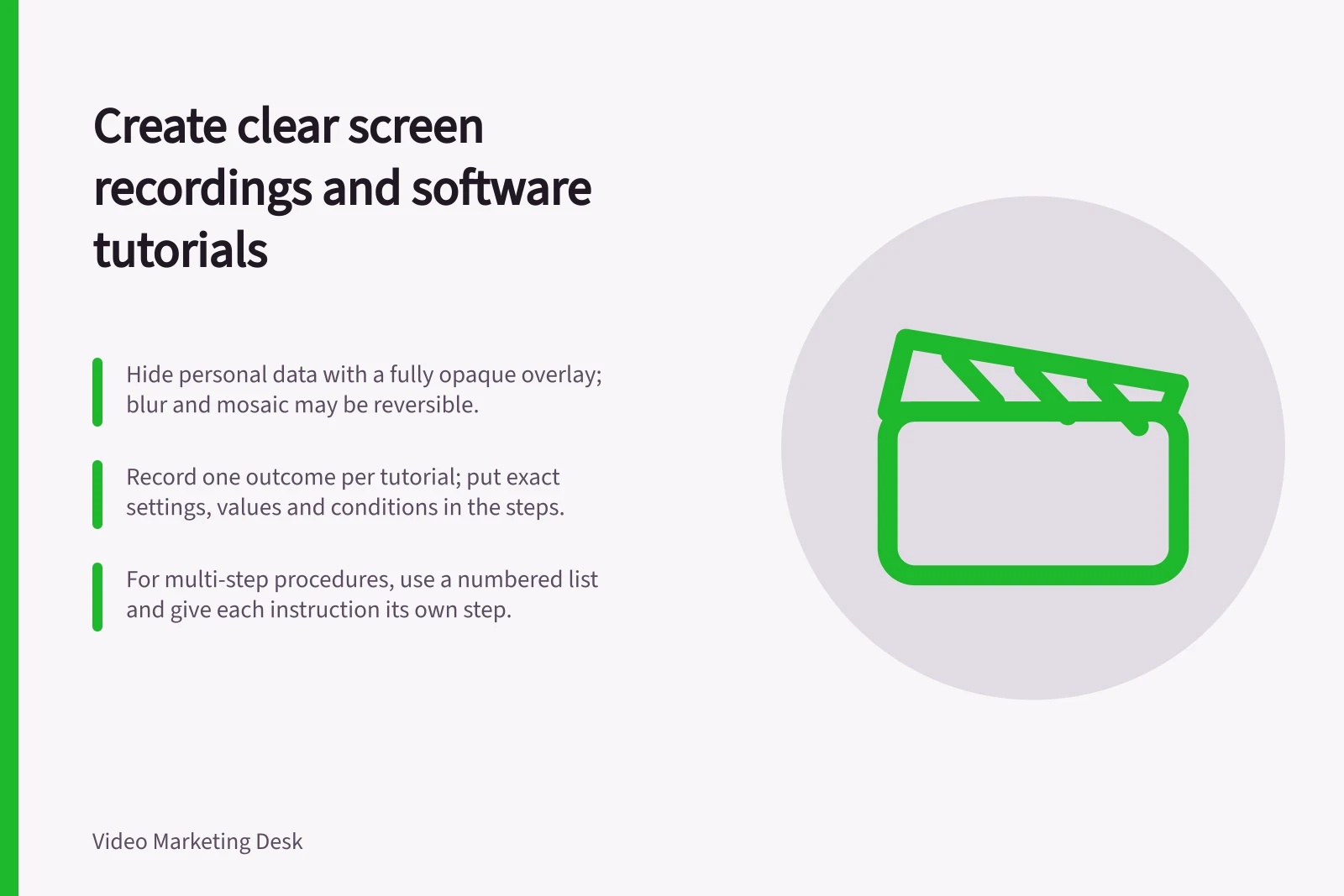
Keep the recording to one outcome. Explain a necessary prerequisite at the start; give a separate task its own answer. Put exact settings, values and conditions in the written steps so viewers can find them without replaying the video.
Where purpose matters more than the control, describe what the viewer is trying to accomplish. Name interface elements explicitly when a label or gesture matters to the procedure, and use the label shown in the recorded version.
Write usable companion steps
Use concise headings that describe the outcome of each procedure, and keep their phrasing consistent. Headings help readers scan the page and find the task they need without searching the whole tutorial.
For a multi-step procedure, use a numbered list and give each instruction its own step. Start with a brief location phrase when readers might otherwise be unsure where to act, then use a direct verb and a complete sentence. Combine short actions only when they happen in the same part of the interface.
Include the actions that finish the procedure, such as selecting a confirmation control, rather than stopping when the main change appears complete. If a procedure is long, avoid crowding too many instructions into one block.
Anatomy of one numbered step
- Location phraseOnly when readers could otherwise be unsure where to act
- Direct verbStart the instruction with the action
- Complete sentenceName the control as it appears in the recorded version
- Finishing actionInclude the confirmation control, not just the main change
Prepare the screen
Use an approved practice account and sample content where possible. Check the full capture path, including menus, search suggestions, notifications and confirmation messages. Private information may appear only after an action.
Capture enough of the interface to orient the viewer, then check whether essential labels remain readable at the intended player size.
For captured images that contain personally identifying information, use a fully opaque solid overlay to hide it; blurring and mosaic effects may be reversible.
Before you hit record
- Use an approved practice account and sample content
- Walk the full capture path, including menus, search suggestions, notifications and confirmation messages
- Capture enough of the interface to orient the viewer
- Confirm essential labels stay readable at the intended player size
- Hide personal information with a fully opaque solid overlayblur and mosaic can be reversible
Keep captured visuals focused
When a still image is more useful than a video moment, include only the interface area that supports the explanation. Crop away unrelated parts of the window so the reader can focus on the relevant control or result, while keeping enough context to understand where it appears.
Use actual text for instructions and code rather than presenting those as images. Keep screenshots consistent in their operating-system appearance, and use descriptive filenames so the images are easier to identify and maintain.
Show actions and results
For each step, show the starting state, the target, the action and the resulting state. Use clear cursor movement to direct attention to the relevant control, and allow the response to appear. Name controls in the narration and use the labels visible in the recorded version.
An edit can remove an uninformative wait, but it must preserve required choices, permissions and confirmations. State any account or setup condition near the step it affects. Hold the result long enough for viewers to inspect it.
Show every action with its result
- Show the starting state
- Point to the target controlMove the cursor clearly to direct attention
- Perform the actionName the control using the label visible on screen
- Let the response appearDo not cut away before the interface reacts
- Hold the resulting stateLong enough for viewers to inspect it
Publish a complete answer
Check the final export at the size people will use. Captions should reflect the final speech and meaningful sounds. Written steps should name the starting condition, controls and expected result.
Convey essential visual changes in the audio or an appropriate description; a descriptive transcript can also bring speech and visual information together for reading. Check the chosen player and page with those assets in place.
Place the tutorial beside the task it supports. Identify the interface context when it affects the instructions. Have a reviewer unfamiliar with the recording follow the page before release.
Before you publish
- Check the final export at the size people will use
- Captions reflect the final speech and meaningful sounds
- Written steps name the starting condition, controls and expected result
- Essential visual changes are conveyed in the audio or an appropriate description
- A descriptive transcript brings speech and visual information together for reading
- The tutorial sits beside the task it supports
- A reviewer unfamiliar with the recording has followed the page before release
Plan accessibility before recording
If important visual information needs spoken description, include it in the script before recording.
Keep it accurate
Record the product area, audience role, relevant version or release context, owner and review trigger. When the interface changes, check the video and written steps together. Replace instructions that no longer lead the stated audience to the stated result.
Keep it accurate after release
- Product area
- Audience role
- Relevant version or release context
- Owner
- Review trigger
- When the interface changes, check the video and written steps together
- Replace instructions that no longer lead the stated audience to the stated result
In this guide
- Choosing the task a software walkthrough should coverChoose one software walkthrough task by defining the viewer, starting point, screen changes and recognisable result.
- Hiding private data before a screen recordingPrepare sample data, inspect the capture path and check the export so a software tutorial does not reveal private information.
- Recording cursor actions at a readable paceShow each cursor target, selection and result clearly, then check the exported software tutorial at its intended viewing size.
- Updating a tutorial after an interface redesignAudit a tutorial against a redesigned interface, choose the right update and check its video, written steps and access assets together.