Editing
Part of Editing business videos for clarity
Using screen recordings alongside a talking-head video
Decide when to show the speaker, the screen or both, and keep narration aligned with the actions viewers need to see.
Build one sequence from the existing talking-head footage and screen recording: use the speaker to explain why the task matters, then cut to the screen for the action or result. Adobe Premiere’s Source Patching is a named way to add media to the timeline. Arrange the clips so each moment has one readable purpose; a small face beside a small interface can make both harder to read.
Give each view a purpose
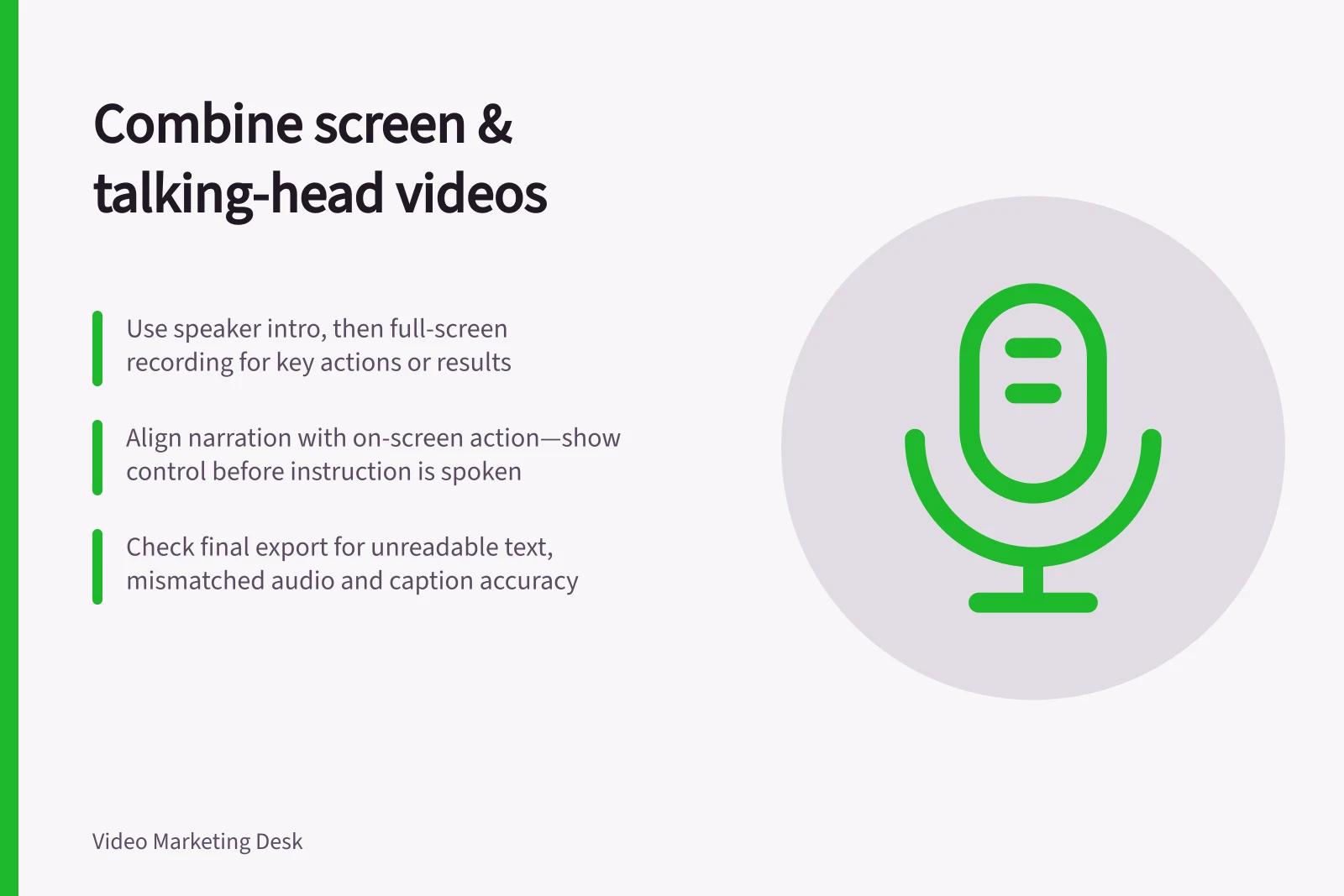
Start with the speaker if their introduction establishes the question or provides context. Switch to a full-screen recording for controls, labels and outcomes the viewer must inspect. Bring the speaker back for interpretation, a limitation or the next decision. A small picture-in-picture view can work during a simple action if it leaves every necessary screen detail clear; check it at the final viewing size.
For the combined edit, place the speaker’s introduction, the screen passage and the speaker’s interpretation in that order on the timeline. Use a full-screen cut for controls, labels or results that need inspection; reserve picture-in-picture for a simple action when the interface remains clear.
A brief shot map can guide the edit:
| Spoken point | Image to consider | Check |
|---|---|---|
| “Here is the task” | Speaker or a clear title | Does the viewer know why to watch? |
| “Select this option” | Screen recording | Is the control visible when named? |
| “This is the result” | Screen recording held on the outcome | Can the viewer inspect the change? |
| “This may differ by account” | Speaker, screen or both | Is the condition heard beside the claim? |
Align narration and action
Use the spoken line as a timing cue: place the existing screen clip where that line begins, show the relevant area before the instruction arrives, and keep it visible until the result appears. If the speaker says “click here”, name the control in a new recording where possible. For an existing recording, make the visual target clear without changing the instruction’s meaning.
Keep the screen action in its actual order. If you remove a wait or an error, make the join clear enough that the video does not imply the task completed instantly or without a required step. When a long screen sequence contains only one useful action, show that action and its outcome.
Check the combined frame
Inspect the export for unreadable labels, hidden cursor actions, mismatched narration and abrupt changes in sound. Watch at a smaller display size as well as on the editing monitor.
If speech sits over background music, keep the background at least 20 decibels below the foreground speech. The stated exception is occasional sounds lasting only one or two seconds.
If important information appears only on screen, include it in the audio or provide a suitable description. W3C guidance says integrated description, woven into the main speaker’s script, is usually best for most training videos; alternatives include a separate video or a separate audio track or timed text file supported by the media player.
Check captions against the final speech and relevant sounds.